If you want to unlock any phone screen lock, you are in the right place. Forgetting your phone’s PIN, pattern, or password can be frustrating. Sometimes Face Unlock stops working, while other times the fingerprint sensor fails to recognize you, leaving you locked out of your own device. In 2026, our smartphones store everything from personal photos to banking apps, so losing access even for a short time can become a major inconvenience.
The good news is that almost every major Android brand, including Redmi, Oppo, Vivo, Tecno, Infinix, Samsung, and others, provides official ways to help you unlock any phone screen lock safely. In this complete guide, you will learn how to deal with all four types of screen locks and the best method to unlock each one when you cannot access your phone.
- 4 Types of Phone Screen Locks Explained
- How to Unlock PIN Lock on Android
- How to Unlock Pattern Lock on Android
- How to Unlock Face Lock on Android
- How to Unlock Fingerprint Lock on Android
- How to Unlock Screen Lock on Redmi Phones
- How to Unlock Screen Lock on Oppo Phones
- How to Unlock Screen Lock on Vivo Phones
- How to Unlock Screen Lock on Tecno Phones
- How to Unlock Screen Lock on Samsung Phones
- How to Prevent Getting Locked Out Again
- Frequently Asked Questions
4 Types of Phone Screen Locks Explained
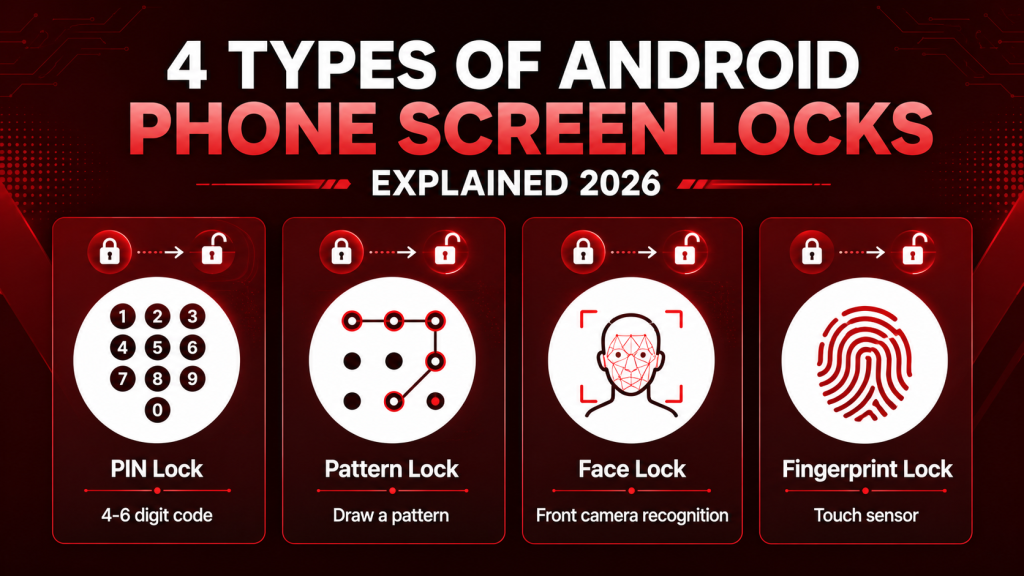
Before trying to unlock any phone screen lock, it is important to understand the four main types of screen locks available on Android phones in 2026. Each one works differently, so the method to unlock it can also be different if you ever lose access to your phone.
1. PIN Lock
A PIN (Personal Identification Number) is a 4 to 6-digit numeric code and is one of the most common screen locks used on Android phones in Pakistan. It is easy to set up and generally very reliable, but many people forget their PIN after changing it, making it difficult to unlock any phone screen lock.
2. Pattern Lock
Pattern lock uses a 3×3 grid of dots connected in a specific sequence. Very popular on budget Android phones in Pakistan. The problem is that patterns leave smudge marks on your screen — making it easier for others to guess your pattern by looking at the screen under light.
3. Face Lock (Face Recognition)
Face Unlock uses your phone’s front camera to recognize your face, making it one of the quickest ways to unlock any phone screen lock. However, it may not work properly in low light, if you are wearing glasses, if your face is partially covered, or even after noticeable changes like weight loss or a new hairstyle. Most budget Android phones use 2D Face Unlock, which is less secure than 3D facial recognition.
4. Fingerprint Lock
Fingerprint Lock is one of the most popular biometric security options on Android phones. It uses a fingerprint sensor placed under the display, on the back, or inside the side power button to recognize your fingerprint. It may stop working properly if your fingers are wet, oily, injured, or if the sensor is dirty.
Now, let us look at how to unlock any phone screen lock for each type, step by step.
How to Unlock PIN Lock on Android Phone
If you forgot your PIN and cannot unlock any phone screen lock using the correct code, here are the methods that work in 2026.
Method 1 — Try Common PINs First
Before doing anything drastic, try these commonly used PINs that many people set without realizing:
- 1234, 0000, 1111, 4321
- Your birth year (e.g. 1995, 2000, 2001)
- Last 4 digits of your phone number
- Your CNIC last 4 digits
Many people use predictable PINs that they then forget. Try these before moving to more complex solutions.
Method 2 — Use Google Find My Device
If your phone is connected to a Google account and has internet access, Google’s Find My Device can help you unlock any phone screen lock remotely.
- On another device, go to android.com/find
- Sign in with the same Google account linked to your locked phone
- Select your phone from the list
- Tap Secure Device
- Set a temporary password
- Use that temporary password to unlock your phone
This method works on most Android phones as long as the phone has an active internet connection and is signed into a Google account.
Method 3 — Factory Reset via Recovery Mode
If the above methods do not work, factory reset is the last option. This erases everything on your phone.
- Power off your phone completely
- Hold Volume Down + Power button simultaneously (varies by brand)
- You will enter Recovery Mode
- Use volume buttons to navigate to Wipe Data / Factory Reset
- Press Power button to confirm
- Select Yes to confirm reset
- Phone will restart fresh without any lock
Warning: Factory reset permanently deletes all data — photos, apps, contacts, messages. Only use this as a last resort after all other methods have failed.
How to Unlock Pattern Lock on Android Phone
Pattern lock is one of the most commonly forgotten locks — especially after changing it recently. Here is how to unlock any phone screen lock when the pattern is forgotten.
Method 1 — Try Your Most Common Patterns
Most people use simple patterns without realizing it. Try these common patterns:
- L-shape from top-left corner
- Z or S shape across all dots
- Simple line — top row, middle row, or bottom row
- Square around all outer dots
Method 2 — Use Smart Lock (If Previously Set Up)
If you had Smart Lock enabled on your phone before getting locked out, it may automatically unlock in trusted locations like your home or when connected to a trusted Bluetooth device.
- Take your phone to a location you previously set as trusted (e.g. your home)
- Connect to your home WiFi or Bluetooth device
- Phone may automatically bypass the pattern lock
- Immediately go to Settings and disable or change the pattern
Method 3 — Google Account Sign-In (Older Android)
On Android phones running Android 4.4 or earlier, you will see a “Forgot Pattern” option after five incorrect pattern attempts. Simply tap it, sign in with your Google account, and follow the on-screen steps to unlock any phone screen lock.
This option is no longer available on Android 5.0 and newer versions because Google removed it for security reasons. If you are using a newer Android phone, you will need to use Google Find My Device or perform a factory reset instead.
How to Unlock Face Lock on Android Phone
Face unlock is the most convenient but also the most fragile of all lock types. Here is how to handle situations when face recognition stops working.
When Face Lock Fails — Quick Fixes
- Clean the front camera lens — A dirty front camera is the most common reason face unlock fails
- Improve lighting — Face unlock needs adequate light. Try in a brighter room
- Remove glasses or face covering — Most 2D face unlock systems struggle with accessories
- Hold phone at face level — Do not tilt the phone — face it directly at eye level
- Re-register your face — If face unlock keeps failing, delete and re-add your face data in Settings → Biometrics → Face Recognition
When Completely Locked Out via Face Lock
If face lock is your only lock method and it completely stopped working:
- Wait for the screen to show the backup unlock option — most phones show a PIN or password option after 3 failed face attempts
- Use your backup PIN or password to get in
- Immediately go to Settings → Security → Face Unlock and add your face again or switch to a more reliable unlock method
Important: Always set a backup PIN or password when using face unlock. Never rely on face unlock alone — it is designed as a convenience feature, not your only security layer.
How to Unlock Fingerprint Lock on Android Phone
Fingerprint sensors are extremely reliable when working properly — but they fail in specific situations. Here is how to unlock any phone screen lock when the fingerprint sensor is the problem.
When Fingerprint Fails — Quick Fixes
- Clean your finger — Wet, oily, or dirty fingers fail fingerprint recognition almost every time. Dry your finger completely before trying
- Clean the sensor — Wipe the fingerprint sensor with a dry cloth to remove oil and dirt buildup
- Try different registered fingers — Most phones allow 5 fingerprints. Try all registered fingers
- Press more firmly — Some under-display fingerprint sensors need firm, flat contact to work correctly
- Re-register fingerprints — If sensor keeps failing, go to Settings → Biometrics → Fingerprints and delete and re-add all fingerprints
When Fingerprint Sensor Completely Stops Working
- Use your backup PIN or pattern to unlock
- Go to Settings → Security → Fingerprints
- Delete all stored fingerprints
- Re-register your fingerprints one by one
- Register the same finger multiple times at different angles for better recognition
If the physical sensor is damaged, you may need a hardware repair. Contact your phone brand’s official service center in Pakistan.
How to Unlock Screen Lock on Redmi Phones
Redmi (Xiaomi) phones are one of the most popular Android brands in Pakistan. Here is exactly how to unlock any phone screen lock on Redmi devices.
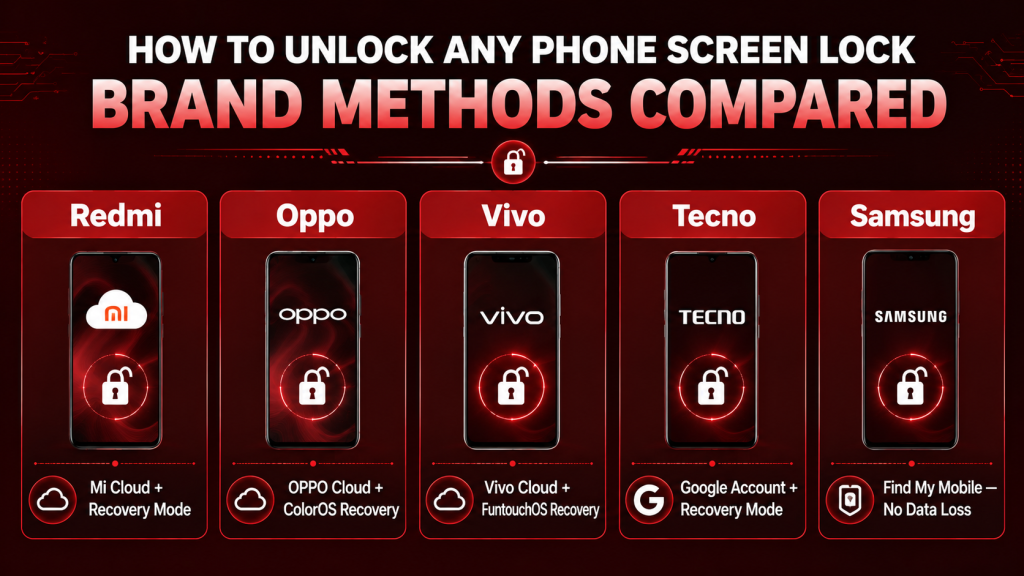
Method 1 — Mi Cloud Account
- Go to i.mi.com on another device
- Sign in with your Mi/Xiaomi account
- Select your locked Redmi phone
- Tap Lock → set a temporary password
- Use this password to unlock your phone
- Then go to Settings and change your permanent lock
Method 2 — Redmi Recovery Mode
- Power off the Redmi phone
- Hold Volume Up + Power button together
- Release when MIUI logo appears
- Select Wipe Data → Wipe All Data
- Confirm and phone resets without lock
How to Unlock Screen Lock on Oppo Phones
Oppo phones run ColorOS and have their own unique screen lock bypass methods. Here is how to unlock any phone screen lock on Oppo devices.
Method 1 — OPPO Cloud Account
- Go to oppocloud.com on another device
- Sign in with your OPPO account
- Select your locked phone
- Use the remote lock feature to set a temporary password
- Enter the temporary password on your locked phone
Method 2 — Oppo Recovery Mode
- Power off your Oppo phone completely
- Hold Volume Down + Power button
- Select Wipe Data from the recovery menu
- Confirm factory reset
- Phone restarts without any screen lock
How to Unlock Screen Lock on Vivo Phones
Vivo phones use FuntouchOS and have a specific process to unlock any phone screen lock when you are locked out.
Method 1 — Vivo Cloud (iQOO Account)
- Go to cloud.vivo.com on another device
- Sign in with your Vivo/iQOO account
- Select your locked phone
- Use remote unlock or set a temporary passcode
Method 2 — Vivo Recovery Mode
- Power off Vivo phone
- Hold Volume Up + Power button
- Navigate to Wipe Data
- Select Format Data to factory reset
- Phone reboots without screen lock
How to Unlock Screen Lock on Tecno Phones
Tecno phones are extremely popular in Pakistan due to their budget pricing. Here is how to unlock any phone screen lock on Tecno devices.
Method 1 — Google Account Method
- After multiple failed unlock attempts, tap Forgot Password if it appears
- Enter your Google account email and password
- Google will verify and allow you to reset the screen lock
Method 2 — Tecno Recovery Mode
- Power off Tecno phone
- Hold Volume Up + Power button simultaneously
- Select Wipe Data / Factory Reset
- Confirm reset
- Phone restarts fresh without any lock
How to Unlock Screen Lock on Samsung Phones
Samsung phones have the most user-friendly account-based unlock system among all Android brands available in Pakistan.
Method 1 — Samsung Find My Mobile
- Go to findmymobile.samsung.com on another device
- Sign in with your Samsung account
- Select your locked Samsung phone
- Tap Unlock
- Confirm your Samsung account password
- Your phone unlocks remotely — no factory reset needed
This is the best method available — Samsung Find My Mobile can unlock your phone without erasing any data. This is a major advantage Samsung has over other brands.
Method 2 — Samsung Recovery Mode
- Power off Samsung phone
- Hold Volume Up + Bixby + Power button (older models) or Volume Up + Power button (newer models)
- Navigate to Wipe Data / Factory Reset
- Confirm and phone resets
How to Prevent Getting Locked Out Again
The best solution for any screen lock problem is prevention. Here are smart habits that will save you from this situation in the future:
- Always set a backup PIN — No matter which lock type you use as primary, always set a backup PIN. Face unlock and fingerprint both require a backup PIN — make sure it is something you will remember.
- Sign in to your brand account — Sign in to Samsung account, Mi account, OPPO account, or Google account on your phone. These accounts are your safety net for remote unlock when needed.
- Enable Google Find My Device — Go to Settings → Google → Find My Device and make sure it is turned ON. This gives you a reliable way to unlock any phone screen lock remotely.
- Write down your PIN somewhere safe — Keep a written record of your PIN in a safe place at home. Not on your phone — somewhere physical like a notebook you trust.
- Use Smart Lock for trusted places — Set your home WiFi as a trusted network in Smart Lock settings. Your phone stays unlocked at home and requires the lock only when you leave.
- Re-register biometrics after software updates — After major Android updates, fingerprint and face recognition sometimes become less accurate. Re-register your biometrics in Settings → Biometrics after every major update.
Frequently Asked Questions
Can I unlock any phone screen lock without losing data?
Yes, in many cases you can unlock any phone screen lock without losing your data if your phone is connected to a brand account such as Samsung Find My Mobile, Mi Cloud, or OPPO Cloud. These official brand services can remotely unlock supported devices without deleting your files.
However, if you use Google Find My Device or perform a factory reset through Recovery Mode, all data stored on your phone will be erased.
How many attempts do I get before the phone locks permanently?
Most Android phones allow around 5 to 10 incorrect attempts before temporarily locking the screen. After that, you may have to wait anywhere from 30 seconds to 30 minutes before trying again. On some phones, if the security option was enabled earlier, repeated failed attempts can erase all data, requiring you to unlock any phone screen lock by setting up the device again.
Is it illegal to unlock a phone screen lock?
Unlocking your own phone is completely legal. The methods in this guide are for unlocking your own device when you forget your own lock. Using these methods to unlock someone else’s phone without permission is illegal and unethical.
Which screen lock is most secure on Android in 2026?
In 2026, a 6-digit PIN combined with fingerprint lock offers the best combination of security and convenience. Face unlock using 3D sensors (like on premium Samsung phones) is also very secure. Simple 4-digit PINs and pattern locks are the least secure options.
My fingerprint sensor is broken — how do I unlock my phone?
Use your backup PIN or pattern to unlock. Then go to Settings → Security → Fingerprints and delete all stored fingerprints. If the sensor is physically damaged, visit your brand’s official service center in Pakistan for repair or replacement.
Why does face unlock fail in the dark?
Most budget and mid-range Android phones use 2D face unlock which relies on the front camera to capture your facial features. In low light, the camera cannot capture enough detail to match your registered face. Premium phones with 3D face recognition (like iPhone Face ID) work in the dark because they use infrared sensors. Until you get better hardware, use a well-lit area or switch to fingerprint lock in low-light conditions.
Can I unlock pattern lock by watching the screen smudge?
Yes — this is a real security concern called the smudge attack. If you use pattern lock, wipe your screen regularly with a cloth to remove smudge marks. Better yet, switch to a PIN or fingerprint lock which do not leave visible traces on the screen.
Final Words
Getting locked out of your phone is stressful — but now you know exactly how to unlock any phone screen lock in 2026. Whether you use PIN, Pattern, Face, or Fingerprint lock — and whether you have a Redmi, Oppo, Vivo, Tecno, or Samsung phone — there is always a solution.
The most important takeaway is this: always keep your phone signed into your brand account and always set a backup PIN. These two simple steps ensure you can always unlock any phone screen lock without losing your precious data.
For the best deals on all phone models mentioned in this guide, visit PriceHai — your trusted source for mobile prices and tech updates in Pakistan.
For official help with your specific phone brand visit Google’s official Android security guide for comprehensive device security information.
Screen Lock Simulator
An interactive demo of how screen lock patterns and PINs work
This is an interactive simulation for entertainment and educational purposes. It does not access, store, or bypass any real device security, and results shown are randomly generated.
